

8.1. Strings#
Strings, patterns, and text analysis
Strings are not like integers, floats, or booleans. A string is a sequence, which means it contains multiple values in a particular order.
This section starts with accessing the individual values that comprise a string and using functions that process strings.
Later sections introduce regular expressions, a powerful tool for identifying patterns in a string and performing operations such as search and replace.
re.search(pattern, text)|for alternative patterns^for the start of a string or line$for the end of a string or linere.sub(pattern, replacement, text)
Later in the chapter, you will have a chance to apply these tools to perform text analysis, as a first step toward text mining and language models.
A string is a sequence of characters enclosed in quotes. A character can be a letter (in almost any alphabet), a digit, a punctuation mark, or white space.
Strings are immutable: after you create a string, you cannot modify or update it.
Strings are one of the most commonly used data types in Python, and Python provides a rich set of built-in operations and methods for working with them.
This section covers:
Creating strings
Indexing and slicing
Concatenation and repetition
Case methods
Searching and testing
Cleaning
Splitting and joining
String formatting
Type-checking methods
String comparison
Looping and sorting
Docstrings
Application
8.1.1. String Creation and Accessing#
You create strings with the assignment operator using single, double, or triple quotes: ‘hello’, “hello”, “””hello”””.
The built-in Python function len() works with string as well.
s = 'supercalifragilisticexpialidocious'

print(type(s))

n = len(s)
print(n)
<class 'str'>
34
Single and double quotes are interchangeable for single-line strings. Use triple quotes for multi-line strings or strings that contain both single and double quotes.
s1 = 'Hello, world!'
s2 = "Hello, world!"
s3 = """This is
a multi-line
string."""

print(s1)
print(s2)
print(s3)
Hello, world!
Hello, world!
This is
a multi-line
string.
8.1.1.1. Escape Sequences and Raw Strings#
Inside a string, a backslash \ introduces an escape sequence, a two-character combination that represents a special character:
Escape Sequence |
Meaning |
Example output |
|---|---|---|
|
Newline |
moves to the next line |
|
Tab |
inserts a horizontal tab |
|
Backslash |
a literal |
|
Double quote |
|
|
Single quote |
|
A raw string is prefixed with r (or R) and treats backslashes as literal characters, so no escape sequences are processed. Raw strings are especially useful for file paths and for regular expression patterns, which you will meet in 8.2.
print("line1\nline2")       # newline
print("col1\tcol2")         # tab
print("C:\\Users\\ty")      # literal backslashes
print(r"C:\Users\ty")       # raw string — same result, easier to read
line1
line2
col1	col2
C:\Users\ty
C:\Users\ty
### Exercise: Escape Sequences and Raw Strings
# Difficulty: Basic
# 1. Print two words on two lines using \n
# 2. Print two values separated by a tab using \t
# 3. Print a Windows path using a raw string
### Your code starts here


### Your code ends here
apple
banana
score	95
C:\Users\alice\data
8.1.1.2. Indexing and Slicing#
Strings are sequences, meaning each character has a numbered position called an index. Python uses zero-based indexing: the first character is at index 0, the second at index 1, and so on. Negative indices count from the end of the string.
8.1.1.2.1. String Indexing#
As a sequence type, the expression in brackets is an index, so called because it indicates which character in the sequence to select. String indexing is 0-based.
fruit = "banana"
print(fruit[0])
b
You can select a character from a string with the bracket operator.
s = 'Python'

print(s[0])    # 'P'  — first character
print(s[1])    # 'y'  — second character
print(s[-1])   # 'n'  — last character
print(s[-2])   # 'o'  — second to last
P
y
n
o
As a reminder, the last letter of a string is the length of the string minus 1. If you use len() to access the last element of the sequence you get an IndexError (string index out of range) because there is no element there to be accessed: 0-based indexing.
Also because of 0-based indexing, to get the last character, you have to subtract 1 from n (n-1).
fruit = 'banana'
n = len(fruit)
%%expect IndexError
fruit[n]
IndexError: string index out of range
fruit[n-1]
'a'
Often forgotten, there’s an easier way to access the last element of a sequence: negative indexing, which counts backward from the end. The index -1 selects the last letter, -2 selects the second to last, and so on.
fruit[-1]
'a'
The index in brackets can be a variable. Or an expression that contains variables and operators.
i = 1
print(fruit[i])
print(fruit[i+1])

for i in range(len(fruit)):
    print(fruit[i], end=' ')
a
n
b a n a n a
Just like lists and tuples, the value of the index has to be an integer; otherwise, you get a TypeError.
%%expect TypeError
fruit[1.5]
TypeError: string indices must be integers, not 'float'
It is tempting to use the [] operator on the left side of an
assignment, with the intention of changing a character in a string.
The result is a TypeError. In the error message, the object is the string and the “item” is the character you tried to assign.
The reason for this error is that strings are immutable, which means you can’t change an existing string.
greeting = 'hello, world'
%%expect TypeError
greeting[0] = 'J'
TypeError: 'str' object does not support item assignment
The best you can do is create a new string that is a variation of the original.
new_greeting = 'J' + greeting[1:]     ### "+" is concatenate here
new_greeting
'Jello, world'
This example concatenates a new first letter onto a slice of greeting.
It has no effect on the original string.
greeting
'hello, world'
8.1.1.2.2. Slicing Strings#
Just like lists and tuples, a segment of a string is called a slice. Selecting a slice is similar to selecting a character. The general syntax of slicing is the same as lists and tuple:
sequence[start:stop:step]
Also, the parameters are start-inclusive and stop-exclusive.
start: index to begin at (inclusive, default0)stop: index to end at (exclusive, default end of string)step: how many characters to skip (default1)
fruit = 'banana'
fruit[0:3]
'ban'
The operator [m:n] returns the part of the string from the mth character to the nth character, including the first but excluding the second. This behavior is counterintuitive, but it might help to imagine the indices pointing between the characters, as in this figure:
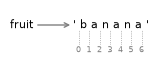
For example, the slice [3:6] selects the letters ana, which means that 6 is legal as part of a slice, but not legal as an index.
Also,
if you omit the first index, the slice starts at the beginning of the string.
if you omit the second index, the slice goes to the end of the string:
s = 'Hello, world!'

print(s[0:5])    # 'Hello'   — characters 0 through 4
print(s[7:])     # 'world!'  — from index 7 to end
print(s[:5])     # 'Hello'   — from start to index 4
print(s[::2])    # every other character
print(s[::-1])   ### 'reversed string' ###
Hello
world!
Hello
Hlo ol!
!dlrow ,olleH
With a positive step, a start index greater than or equal to the stop index produces an empty string, represented by two quotation marks. An empty string contains no characters and has length zero. A negative step moves backward, so the start must be greater than the stop to select characters.
print(f"len(fruit[3:3]): {len(fruit[3:3])}")
print(f"Type of fruit[3:3]: {type(fruit[3:3])}")
fruit[3:3]
len(fruit[3:3]): 0
Type of fruit[3:3]: <class 'str'>
''
fruit = 'banana'
print(repr(fruit[3:1]))       # ''
print(repr(fruit[3:1:-1]))    # 'an': indices 3 and 2
''
'an'
Continuing this example, what do you think fruit[:] means? Try it and
see.
fruit[:]
'banana'
To practice your slicing skills, play these in your head with string “banana”, which may not be as easy as you think.
fruit[0:-1]
fruit[-2:]
fruit[0:-1:2]

# print(fruit[0:-1])              ### all but the last letter: banan
# print(fruit[-2:])               ### the last two letters: na
# print(fruit[0:-1:2])            ### step is 2, so you get bnn
'bnn'
### Exercise: Indexing and Slicing
# Difficulty: Basic
# 1. Print the first character
# 2. Print the last character using negative indexing
# 3. Print every second character
# 4. Print the reversed string
text = 'superpython'
### Your code starts here


### Your code ends here
s
n
spryhn
nohtyprepus
8.1.1.3. Concatenation and Repetition#
The + operator joins two strings together (concatenation). The * operator repeats a string a given number of times (repetition).
first = 'Hello'
last  = 'World'

# Concatenation
greeting = first + ', ' + last + '!'
print(greeting)        # 'Hello, World!'

# Repetition
line = '* ' * 10
print(line)            # '* * * * * * * * * * '

print('ha' * 3)        # 'hahaha'
Hello, World!
* * * * * * * * * *
hahaha
### Exercise: Concatenation and Repetition
# Difficulty: Basic
# 1. Build and print: "Alice & Bob" using concatenation
# 2. Print "ha" repeated 4 times
# 3. Create a divider of 20 dashes and print it
first = 'Alice'
last = 'Bob'
### Your code starts here


### Your code ends here
Alice & Bob
hahahaha
--------------------
8.1.2. String Methods#
Python provides strings methods that perform a variety of useful operations. A method is similar to a function, it usually takes arguments and returns a value. But the syntax for methods is different from that of functions. A method belongs to an object, so, for example, the method upper() that returns a new all uppercase string has to come after a string object with a . (dot notation), which makes the method syntax like'banana'.upper() to output ‘BANANA’, instead of what a function would look like upper('banana').
word = 'banana'
new_word = word.upper()
new_word
'BANANA'
This use of the dot operator specifies the name of the method, upper, and the name of the string to apply the method to, word.
The empty parentheses indicate that this method takes no arguments.
A method call is called an invocation; in this case, you would say that you are invoking upper on word.
To see how many string methods Python offers, we can use the code below.
methods = [m for m in dir(str) if not m.startswith('_')]
num_str_methods = len(methods)
print(num_str_methods)  # 47
print(methods)
47
['capitalize', 'casefold', 'center', 'count', 'encode', 'endswith', 'expandtabs', 'find', 'format', 'format_map', 'index', 'isalnum', 'isalpha', 'isascii', 'isdecimal', 'isdigit', 'isidentifier', 'islower', 'isnumeric', 'isprintable', 'isspace', 'istitle', 'isupper', 'join', 'ljust', 'lower', 'lstrip', 'maketrans', 'partition', 'removeprefix', 'removesuffix', 'replace', 'rfind', 'rindex', 'rjust', 'rpartition', 'rsplit', 'rstrip', 'split', 'splitlines', 'startswith', 'strip', 'swapcase', 'title', 'translate', 'upper', 'zfill']
Python offers 47 string methods. Here below is a collection of some of the commonly used ones.
Category |
Method |
Description |
|---|---|---|
Case |
|
All uppercase |
Case |
|
All lowercase |
Search |
|
Index of first match, -1 if missing |
Search |
|
Index of first match, raises error if missing |
Search |
|
Count occurrences |
Whitespace |
|
Remove leading/trailing whitespace |
Split |
|
Split on delimiter |
Join |
|
Join list into string |
Replace |
|
Replace all occurrences |
Check |
|
All whitespace |
Check |
|
All uppercase |
Check |
|
All lowercase |
s = "  Hello, World!  "
words = "the quick brown fox"

# Case
print("--- Case ---")
print(s.upper())
print(s.lower())

# Search
print("\n--- Search ---")
print(words.find("quick"))
print(words.index("fox"))
print(words.count("o"))

# Whitespace
print("\n--- Whitespace ---")
print(repr(s.strip()))

# Split
print("\n--- Split ---")
print(words.split(" "))

# Join
print("\n--- Join ---")
print(", ".join(["apple", "banana", "cherry"]))

# Replace
print("\n--- Replace ---")
print(words.replace("fox", "cat"))

# Check
print("\n--- Check ---")
print("   ".isspace())
print("HELLO".isupper())
print("hello".islower())
--- Case ---
  HELLO, WORLD!
  hello, world!

--- Search ---
4
16
2

--- Whitespace ---
'Hello, World!'

--- Split ---
['the', 'quick', 'brown', 'fox']

--- Join ---
apple, banana, cherry

--- Replace ---
the quick brown cat

--- Check ---
True
True
True
8.1.2.1. Case Methods#
Python provides several methods for changing the case of a string. These are useful for normalizing text before comparison or display.
s = 'hello, world!'

print(s.upper())        # 'HELLO, WORLD!'  — all uppercase
print(s.lower())        # 'hello, world!'  — all lowercase
print(s.title())        # 'Hello, World!'  — first letter of each word capitalized
print(s.capitalize())   # 'Hello, world!'  — first letter of string capitalized
print(s.swapcase())     # 'HELLO, WORLD!'  — swap upper and lower
HELLO, WORLD!
hello, world!
Hello, World!
Hello, world!
HELLO, WORLD!
Case methods are often used to make comparisons case-insensitive. For example, you might want to turn a username or email address all uppercase in the case of user login.
user_input = 'Alice'
username    = 'alice'

print(user_input == username)                    # False
print(user_input.lower() == username.lower())    # True
False
True
For case-insensitive comparison, casefold() is a stronger version of lower(). It applies extra Unicode rules so that letters with more than one lowercase form compare as equal. For example, the German letter ß stays ß under lower() but becomes ss under casefold(). For plain English text the two methods give the same result, but casefold() is the recommended choice whenever you compare strings without regard to case.
You can also pass str.casefold as the key function to sorted(). Python then compares the casefolded versions of the words, so uppercase and lowercase words sort together instead of every uppercase word coming first. The original strings appear in the result unchanged.
word = 'Straße'
print(word.lower())                       # 'straße'
print(word.casefold())                    # 'strasse'
print(word.lower() == 'strasse')          # False
print(word.casefold() == 'strasse')       # True

words = ['banana', 'Apple', 'cherry', 'apple', 'Banana']
print(sorted(words))                      # uppercase words come first
print(sorted(words, key=str.casefold))    # case-insensitive order
straße
strasse
False
True
['Apple', 'Banana', 'apple', 'banana', 'cherry']
['Apple', 'apple', 'banana', 'Banana', 'cherry']
### Exercise: Case Methods
# Difficulty: Basic
# 1. Print user_input in upper, lower, and title case
# 2. Print whether user_input matches target case-insensitively
user_input = 'PyThOn'
target = 'python'
### Your code starts here


### Your code ends here
PYTHON
python
Python
True
8.1.2.2. Searching and Testing#
Strings have methods that answer questions about their contents: where a substring appears, how many times it appears, and whether the string starts or ends with it. The in operator gives a quick yes-or-no answer.
8.1.2.2.1. Finding a Substring#
find(sub) returns the index of the first occurrence of sub, or -1 if not found. index(sub) works the same way but raises a ValueError if the substring is not found.
s = 'data science and data engineering'

print(s.find('data'))     # 0  — first occurrence
print(s.find('data', 5))  # 17 — search starting at index 5
print(s.find('math'))     # -1 — not found

print(s.rfind('data'))    # 17 — last occurrence
0
17
-1
17
8.1.2.2.2. Counting Occurrences#
count(sub) returns the number of non-overlapping occurrences of a substring.
s = 'banana'
print(s.count('a'))    # 3
print(s.count('an'))   # 2
3
2
8.1.2.2.3. Starts and Ends With#
startswith(prefix) and endswith(suffix) test whether a string begins or ends with a given substring. Both return True or False.
filename = 'report_2025.csv'

print(filename.startswith('report'))   # True
print(filename.endswith('.csv'))       # True
print(filename.endswith('.xlsx'))      # False
True
True
False
8.1.2.2.4. The in Operator#
The in operator tests whether a substring appears anywhere in a string. It is the most readable way to check for membership.
s = 'machine learning'

print('learning' in s)    # True
print('deep' in s)        # False
print('deep' not in s)    # True
True
False
True
### Exercise: Searching and Testing
# Difficulty: Intermediate
# 1. Find the index of the first "data"
# 2. Find the index of "data" starting from position 5
# 3. Count how many times "data" appears
# 4. Check if "science" is in sentence
sentence = 'data science uses data pipelines'
### Your code starts here


### Your code ends here
0
18
2
True
8.1.2.3. Cleaning#
Real-world text data often contains extra whitespace or unwanted characters. Python provides several methods for cleaning strings.
8.1.2.3.1. Stripping Whitespace#
strip()removes leading and trailing whitespace.lstrip()(left strip) removes only leading whitespace.rstrip()(right strip) removes only trailing whitespace.
s = '   hello, world!   '

print(repr(s.strip()))    # 'hello, world!'
print(repr(s.lstrip()))   # 'hello, world!   '
print(repr(s.rstrip()))   # '   hello, world!'
'hello, world!'
'hello, world!   '
'   hello, world!'
You can also pass a character to strip. For example, s.strip('.') removes leading and trailing periods.
s = '...hello...'
print(s.strip('.'))    # 'hello'
hello
8.1.2.3.2. Replacing Substrings#
replace(old, new) returns a new string with all occurrences of old replaced by new. An optional third argument limits the number of replacements.
s = 'I like cats. Cats are great.'

print(s.replace('cats', 'dogs'))        # replace all
print(s.replace('cats', 'dogs', 1))     # replace first occurrence only

# Useful for removing characters
s2 = 'hello, world!'
print(s2.replace(',', '').replace('!', ''))   # 'hello world'
I like dogs. Cats are great.
I like dogs. Cats are great.
hello world
### Exercise: Cleaning Strings
# Difficulty: Intermediate
# 1. Strip leading/trailing dots
# 2. Strip leading/trailing whitespace from the result
# 3. Replace "Python" with "Data Science"
# 4. Print the cleaned string
raw = '...  Hello, Python!  ...'
### Your code starts here


### Your code ends here
Hello, Data Science!
8.1.2.4. Splitting and Joining#
split() and join() convert between one string and a list of strings. Splitting separates text into pieces, and joining combines those pieces. Together they handle text-cleanup tasks such as collapsing extra spaces.
8.1.2.4.1. Splitting#
split(sep) breaks a string into a list of substrings at each occurrence of the separator sep. If no separator is given, it splits on any whitespace and removes empty strings.
s = 'Python,R,SQL,Julia'
print(s.split(','))           # ['Python', 'R', 'SQL', 'Julia']

s2 = 'one two   three'
print(s2.split())             # ['one', 'two', 'three']

# Split on a specific delimiter, keeping empty strings
s3 = 'a,,b,,c'
print(s3.split(','))          # ['a', '', 'b', '', 'c']

# Limit the number of splits
s4 = '2025-08-26'
print(s4.split('-', 1))       # ['2025', '08-26']
['Python', 'R', 'SQL', 'Julia']
['one', 'two', 'three']
['a', '', 'b', '', 'c']
['2025', '08-26']
8.1.2.4.2. Joining#
separator.join(iterable) combines strings, inserting the separator between them. Every element must be a string. Joining the result of split() does not necessarily reconstruct the input: whitespace splitting discards the original spacing.
words = ['Python', 'is', 'fun']

print(' '.join(words))     # 'Python is fun'
print('-'.join(words))     # 'Python-is-fun'
print(''.join(words))      # 'Pythonisfun'

# Practical: reassemble a cleaned sentence
sentence = '  too   many   spaces  '
cleaned  = ' '.join(sentence.split())
print(cleaned)             # 'too many spaces'
Python is fun
Python-is-fun
Pythonisfun
too many spaces
The last example produces 'too many spaces', with one space between words. Leading, trailing, and repeated whitespace are lost. In contrast, ','.join('a,,b'.split(',')) reconstructs 'a,,b' because an explicit separator preserves the empty field. Choose the form according to whether spacing is data or something you intend to normalize.
### Exercise: Splitting and Joining
# Difficulty: Intermediate
# 1. Split the record into a list of names
# 2. Join names with " - "
# 3. Print both the list and joined string
record = 'alice,bob,charlie'
### Your code starts here


### Your code ends here
['alice', 'bob', 'charlie']
alice - bob - charlie
8.1.2.5. String Formatting#
String formatting inserts values into a string template. Python offers three approaches: f-strings (modern, recommended), str.format(), and % formatting (legacy).
8.1.2.5.1. f-Strings#
An f-string is prefixed with f and uses {} to embed expressions directly inside the string. F-strings are the most readable and most commonly used approach.
name  = 'Alice'
score = 95.678

print(f'Student: {name}')
print(f'Score: {score:.2f}')        # 2 decimal places
print(f'Score: {score:>10.2f}')     # right-aligned, width 10
print(f'{name.upper()}')              # apply conversion (capitalize)
print(f'Double score: {score * 2}') # expressions work inside {}
Student: Alice
Score: 95.68
Score:      95.68
ALICE
Double score: 191.356
8.1.2.5.2. Format Specification Mini-Language#
Inside {}, a colon : introduces a format spec that controls how the value is displayed.
Spec |
Meaning |
Example |
|---|---|---|
|
2 decimal places (float) |
|
|
integer |
|
|
scientific notation |
|
|
percentage |
|
|
right-align, width 10 |
|
|
left-align, width 10 |
|
|
center, width 10 |
|
|
thousands separator |
|
pi = 3.14159265
n  = 1000000
r  = 0.756

print(f'{pi:.4f}')      # '3.1416'
print(f'{pi:e}')        # '3.141593e+00'
print(f'{n:,}')         # '1,000,000'
print(f'{r:.1%}')       # '75.6%'
print(f'{pi:^10.2f}')   # '   3.14   '
3.1416
3.141593e+00
1,000,000
75.6%
   3.14
8.1.2.5.3. str.format()#
str.format() is an older but still widely used formatting approach. You pass values as arguments, and the method inserts them into {} placeholders.
name  = 'Bob'
grade = 88.5

print('Name: {}, Grade: {:.1f}'.format(name, grade))
print('Name: {0}, Grade: {1:.1f}'.format(name, grade))   # positional
print('Name: {n}, Grade: {g:.1f}'.format(n=name, g=grade))  # keyword
Name: Bob, Grade: 88.5
Name: Bob, Grade: 88.5
Name: Bob, Grade: 88.5
### Exercise: String Formatting
# Difficulty: Intermediate
# 1. Print name and score with score rounded to 1 decimal place using f-string
# 2. Print score as a percentage with 1 decimal place (assume score/100)
# 3. Print name right-aligned in width 10
name = 'Alice'
score = 92.456
### Your code starts here


### Your code ends here
Name: Alice, Score: 92.5
Percent: 92.5%
     Alice
8.1.2.6. Type-Checking Methods#
Python strings have a family of is*() methods that test the character composition of a string. Each returns True or False.
Method |
Returns |
|---|---|
|
the nonempty string contains only Unicode digit characters |
|
all characters are letters |
|
all characters are letters or digits |
|
all characters are whitespace |
|
all cased characters are uppercase |
|
all cased characters are lowercase |
|
string is in title case |
print('12345'.isdigit())     # True
print('abc'.isalpha())       # True
print('abc123'.isalnum())    # True
print('   '.isspace())       # True
print('HELLO'.isupper())     # True
print('hello'.islower())     # True
print('Hello World'.istitle()) # True

# Mixed cases return False
print('abc123!'.isalnum())   # False — '!' is not alphanumeric
print(''.isdigit())          # False — empty string
True
True
True
True
True
True
True
False
False
The numeric character tests accept progressively broader groups: isdecimal() accepts decimal digits, isdigit() also accepts characters such as superscript digits, and isnumeric() also accepts numeric characters such as fractions and Unicode Roman numerals. Each requires a nonempty string in which every character meets its rule. In the table, text is the string shown in each column heading.
Method |
Standard digits ( |
Superscript ( |
Fraction ( |
Unicode Roman numeral ( |
|---|---|---|---|---|
|
|
|
|
|
|
|
|
|
|
|
|
|
|
|
The Roman numeral "Ⅳ" is one Unicode character (U+2163). It differs from "IV", which contains the two letters I and V and returns False for all three tests. Likewise, the single fraction character "½" differs from "1/2", which contains a slash and fails all three tests. Decimal digits include digits from other writing systems, not just 0 through 9. These methods classify characters rather than parse numeric expressions: signs and decimal points fail all three tests.
These methods classify characters; they do not guarantee successful numeric conversion. For example, the superscript digit '²' passes isdigit() but cannot be converted by int(). To accept an integer, attempt the conversion and handle ValueError, as in Chapter 5. Add a range check separately if the value must represent a year.
for user_input in ['2025', '²', 'not a year']:
    print(repr(user_input), 'isdigit:', user_input.isdigit())
    try:
        year = int(user_input)
    except ValueError:
        print('Please enter an integer.')
    else:
        print('Parsed integer:', year)
'2025' isdigit: True
Parsed integer: 2025
'²' isdigit: True
Please enter an integer.
'not a year' isdigit: False
Please enter an integer.
### Exercise: Type-Checking Methods
# Difficulty: Intermediate
# 1. For each sample, print isdigit, isalpha, and isalnum results
# 2. For "Hello World", print istitle result
samples = ['123', 'abc', 'abc123', '   ', 'Hello World']
### Your code starts here


### Your code ends here
123 True False True
abc False True True
abc123 False False True
    False False False
Hello World False False False
True
8.1.2.7. Methods Reference#
Python provides a number of function and methods for string operations. The commonly used methods are:
Operation |
Syntax |
Description |
|---|---|---|
Length |
|
Number of characters |
Indexing |
|
Character at position |
Slicing |
|
Extract substring |
Concatenation |
|
Join two strings |
Repetition |
|
Repeat string |
Uppercase |
|
All uppercase |
Lowercase |
|
All lowercase |
Title case |
|
Capitalize each word |
Find |
|
Index of first match, or |
Count |
|
Number of occurrences |
Membership |
|
Test if substring present |
Strip |
|
Remove leading/trailing whitespace |
Replace |
|
Substitute substring |
Split |
|
String → list |
Join |
|
List → string |
f-string |
|
Formatted string literal |
Type check |
|
Test character composition |
The table above is a verified reference for the operations developed here. Notice their different results: find() returns a position, in returns a Boolean, split() returns a list, and join() returns a string. A cleaning pipeline combines these operations while keeping track of the type at each step.
### Exercise: Methods Reference Practice
# Difficulty: Intermediate
# Use at least 4 methods from this section to:
# 1. Remove outer spaces
# 2. Replace "split" with "bread"
# 3. Convert to uppercase
# 4. Check whether "BANANA" is in the final string
s = '  banana split  '
### Your code starts here


### Your code ends here
BANANA BREAD
True
8.1.3. String Comparison#
Observe the following operations.
### check out the comparisons here:

print("A" < 'a')
print("a" < 'banana')
print('Pineapple' > 'pineapple')
print('Pineapple' > 'banana')
True
True
False
False
Python compares strings lexicographically using Unicode code points, the numbers assigned to characters. It compares corresponding characters from left to right; the first difference determines the result. If one string is a prefix of the other, the shorter string comes first.
ASCII characters form a subset of Unicode. These familiar examples explain the case-sensitive order in the preceding cell:
Character |
Unicode code point ( |
|---|---|
|
48 |
|
65 |
|
97 |
|
233 |
'apple' < 'apricot' is true: the first two characters agree, then p precedes r. In 'app' < 'apple', the entire shorter string agrees with the prefix of the longer one. This ordering is not a language-specific dictionary order.
Use ord(character) to inspect the code point of one character:
print(ord('A'), ord('a'), ord('é'))  # 65 97 233
print('apple' < 'apricot')           # True
print('app' < 'apple')               # True
65 97 233
True
True
word = 'banana'

if word == 'banana':
    print('All right, banana.')
All right, banana.
Other relational operations are useful for putting words in alphabetical order:
def compare_word(word):
    if word < 'banana':
        print(word, 'comes before banana.')
    elif word > 'banana':
        print(word, 'comes after banana.')
    else:
        print('All right, banana.')
compare_word('apple')
apple comes before banana.
For ASCII letters, all uppercase letters precede all lowercase letters. For example:
compare_word('Pineapple')
Pineapple comes before banana.
This can be problematic sometimes. To solve this problem, you can convert strings to a standard format, such as all lowercase or all uppercase, before performing the comparison.
compare_word('Pineapple'.lower())
pineapple comes after banana.
### Exercise: String Comparison
# Difficulty: Challenge
# 1. Print the list sorted as-is
# 2. Print the list sorted case-insensitively
# 3. Build and print a list of tuples: (word, word.casefold())
# 4. Print whether "Apple" and "apple" are equal under casefold
words = ['Apple', 'apple', 'banana', 'Banana', 'cherry']
### Your code starts here


### Your code ends here
['Apple', 'Banana', 'apple', 'banana', 'cherry']
['Apple', 'apple', 'banana', 'Banana', 'cherry']
[('Apple', 'apple'), ('apple', 'apple'), ('banana', 'banana'), ('Banana', 'banana'), ('cherry', 'cherry')]
True
8.1.4. Looping and Sorting#
Many text tasks work on a list of strings rather than a single string. This section shows how to loop through such a list, how to sort it, and how to document the functions you write with docstrings.
8.1.4.1. Looping Through String Lists#
You can use a for statement to loop through the elements of a list.
fruits = ['apple', 'banana', 'cherry']

for fruit in fruits:
    print(fruit)
apple
banana
cherry
.split() returns a list of words, so you can use for to loop through them.
s = 'We are programmed to receive'  ### lyric from the Eagles' 1976 hit song "Hotel California".

for word in s.split():
    print(word)
We
are
programmed
to
receive
Not that it’s useful, but a for loop over an empty list never runs the indented statements.
for x in []:
    print('This never happens.')
### Exercise: Looping Through String Lists
# Difficulty: Basic
# 1. Loop through the words and print each word in lowercase
# 2. Create a new list containing only words that start with a vowel (a, e, i, o, u)
words = ['apple', 'Banana', 'cherry', 'Date', 'elderberry']
### Your code starts here


### Your code ends here
Words in lowercase:
apple
banana
cherry
date
elderberry

Words starting with a vowel: ['apple', 'elderberry']
8.1.4.2. Sorting String Lists#
Python provides a built-in function called sorted that sorts the elements of a list and the .sort() method that does similarly.
sorted().join()
scramble = ['c', 'a', 'b']
sorted(scramble)
['a', 'b', 'c']
The original list is unchanged.
scramble
['c', 'a', 'b']
sorted works with any kind of sequence, not just strings or lists. So you can sort the letters in a string like this.
sorted('letters')
['e', 'e', 'l', 'r', 's', 't', 't']
The result is a list. To convert the list to a string, you can use join.
letters = ''.join(sorted('letters'))
With an empty string as the delimiter, the elements of the list are joined with nothing between them.
In lists, you have a .sort() method, which is not available in strings; it is list only.
%%expect AttributeError
letters.sort()
AttributeError: 'str' object has no attribute 'sort'
### Exercise: Sorting Lists
# Difficulty: Intermediate
# 1. Sort the scores in descending order (highest first)
# 2. Sort the names alphabetically and join them with commas
scores = [85, 92, 78, 90, 88]
names = ['Charlie', 'Alice', 'Bob']
### Your code starts here


### Your code ends here
Scores (descending): [92, 90, 88, 85, 78]
Names (alphabetically): Alice, Bob, Charlie
8.1.4.3. Docstrings#
A docstring is a string at the beginning of a function that explains the interface (“doc” is short for “documentation”). Here is an example:
def clean_label(text):
    """Return text with outer whitespace removed and case folded.

    text: string to normalize for comparison
    returns: a new string; the original text is unchanged
    """
    return text.strip().casefold()

print(clean_label('  Straße  '))  # strasse
strasse
By convention, docstrings are triple-quoted strings, also known as multiline strings because the triple quotes allow the string to span more than one line.
A docstring should:
Explain concisely what the function does, without getting into the details of how it works,
Explain what effect each parameter has on the behavior of the function, and
Indicate what type each parameter should be, if it is not obvious.
Writing this kind of documentation is an important part of interface design. A well-designed interface should be simple to explain; if you have a hard time explaining one of your functions, maybe the interface could be improved.
### Exercise: Writing a Docstring
# Difficulty: Challenge
# Write a function called clean_label(text: str) -> str.
# 1. Document its parameter, return value, and one raised error.
# 2. Raise ValueError if stripping whitespace leaves an empty string.
# 3. Return the stripped, casefolded label.
# 4. Call it with '  Apple  ' and print the result.
### Your code starts here


### Your code ends here
apple
8.1.5. Application: Word List#
Apply what you have learned to a real-world task: building and searching a word list.
The file words.txt contains more than 113,000 English words, one per line.
To search those words many times, it is efficient to read the file once and put the words in a list.
The following loop shows how.
This application uses the existing Files appendix. Review it first if file iteration or paths are unfamiliar. A Path represents a location; / combines it with a filename. open(path, encoding='utf-8') decodes bytes into text, and with closes the file when the block ends. Iterating over the file yields one line at a time.
The setup cell locates the project root. All examples store data in its data directory, regardless of the notebook’s working directory.
from pathlib import Path
data_dir = project_root / 'data'
data_dir.mkdir(parents=True, exist_ok=True)
words_file = data_dir / 'words.txt'
if not words_file.exists():
    download('https://raw.githubusercontent.com/AllenDowney/ThinkPython/v3/words.txt', words_file)
word_list = []
with open(words_file, encoding='utf-8') as reader:
    for line in reader:
        word = line.strip()
        word_list.append(word)
len(word_list)
113783
word_list[:10]
['aa',
 'aah',
 'aahed',
 'aahing',
 'aahs',
 'aal',
 'aalii',
 'aaliis',
 'aals',
 'aardvark']
Before the loop, word_list is initialized with an empty list.
Each time through the loop, the append method adds a word to the end.
When the loop is done, there are more than 113,000 words in the list.
Another way to do the same thing is to use the read_text() method of a Path to read the entire file into a string.
string = words_file.read_text(encoding='utf-8')
len(string)
1016511
The result is a single string with more than a million characters.
You can use the split method to split it into a list of words.
word_list = string.split()
len(word_list)
113783
Evaluating the variable word_list in Jupyter Notebook will give you the whole list, which is very long, so use a for loop to take a look at the first 5 elements:
for i in range(5):
    print(word_list[i])
aa
aah
aahed
aahing
aahs
Or just use slicing.
word_list[:5]
['aa', 'aah', 'aahed', 'aahing', 'aahs']
And you always want to know the data type of your data:
print(type(word_list))
<class 'list'>
To check whether a string appears in the list, you can use the in operator.
For example, 'demotic' is in the list.
'demotic' in word_list
True
But 'contrafibularities' is not.
'contrafibularities' in word_list
False
"supercalifragilisticexpialidocious" in word_list
False
### Exercise: Word List Application
# Difficulty: Challenge
# Using word_list from this section:
# 1. Print the first 3 words
# 2. Count how many words start with "a"
# 3. Print the average word length (rounded to 2 decimals)
# 4. Find and print the longest word among the first 5000 words
### Your code starts here


### Your code ends here
['aa', 'aah', 'aahed']
6557
7.93
anticonservationist